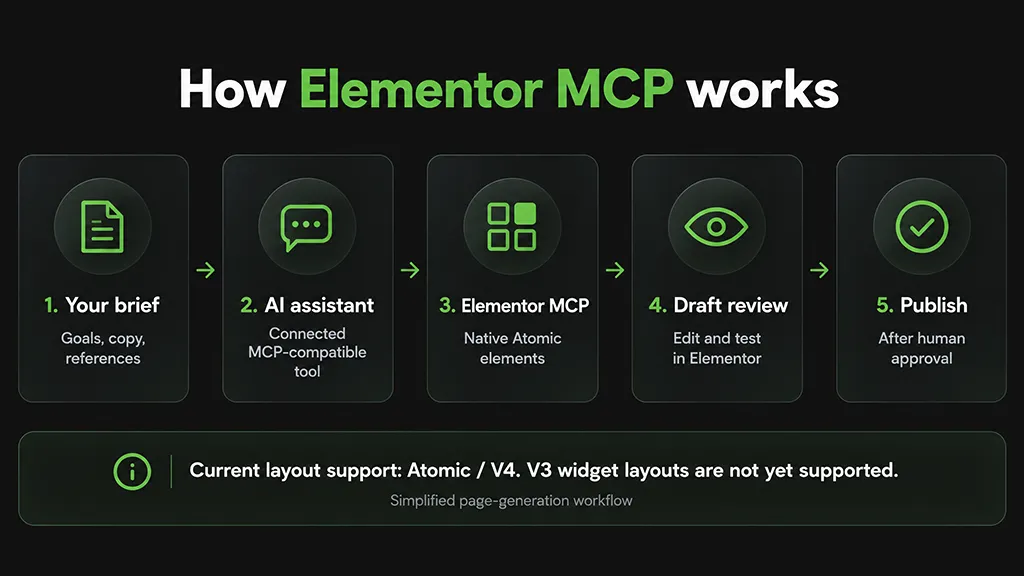
Elementor MCP lets a connected AI assistant build real, editable Elementor pages from your instructions. Instead of receiving a block of code to paste into WordPress, you get a layout you can open, adjust, and finish in the Elementor Editor.
That makes a brief like this much more interesting:
“Create a landing page for our new service. Use our brand colors, explain the benefits, and finish with a clear call to action.”
The important part is not simply that AI generates something. It is that your team can keep working on the result using the builder it already knows.
There is one important compatibility detail: Elementor MCP currently supports Atomic elements and layouts, associated with Editor V4. Support for older V3 widget layouts is still listed as upcoming.
What is Elementor MCP?
MCP stands for Model Context Protocol. In practical terms, it gives a compatible AI assistant a way to work with tools outside the chat window.
Elementor MCP connects that assistant to your Elementor website.
The roles are straightforward:
You provide the brief: what to build, who it is for, and which content and design rules to follow.
The AI assistant interprets the request: using the context and references you provide.
Elementor MCP provides the building tools: allowing the assistant to create and edit supported Elementor structures.
You review the result: inside Elementor, before publishing.
Elementor lists Claude, Codex, and Cursor among the tools that can connect. Its FAQ also describes support for other MCP-compatible AI tools.
The feature was introduced in Elementor 4.3.0 on September 22, 2026, according to the official changelog.
This is an optional way to work with Elementor, not a replacement for its visual editor.
What can Elementor MCP actually build?
The official Elementor MCP overview describes capabilities ranging from individual sections to complete pages and theme parts.
The distinction between the basic connection, Pro features, and Angie matters:
| What you want to create | What Elementor describes | What to check |
|---|---|---|
Pages and sections | Native, editable Elementor layouts | Current support is for Atomic/V4 layouts |
Changes to existing layouts | Editing and redesigning supported elements | Older V3 widget layouts are not yet supported |
Design systems | Colors, typography, and sizes applied across the site | Define the design rules before generating |
Headers, footers, and post templates | Theme parts, including dynamic content | Requires the relevant Pro features |
Forms, popups, loops, and Components | More advanced building tools exposed through Pro | Availability depends on your plan |
Custom widgets and bulk content actions | Extended capabilities beyond page building | Requires Angie alongside Elementor |
Angie is not required for everything. Elementor says ordinary page, section, and theme-part creation can work without it. Connections to other plugins, custom widgets and apps, WordPress admin customization, and bulk content actions require Angie.
Likewise, a connection to another tool does not appear automatically. A Figma design or a document can supply context if your AI assistant already has access to that source.
Why editable output is the real advantage
Imagine asking an AI tool for a landing page and receiving standalone HTML. That can be useful, but someone still needs to decide how that code fits into the website and how the team will maintain it.
Elementor MCP takes a different route: the generated page uses native Elementor structure.
That means the next person working on it can:
Open the page in Elementor.
Change the wording.
Adjust spacing and typography.
Replace images.
Refine the mobile layout.
Continue editing without recreating the page from scratch.
For a business, that continuity matters. The person who approves a campaign may not be the person who built its landing page.
AI-assisted creation becomes more practical when the handover stays familiar.
Three useful ways to start
These are suggested applications of the documented features, not results from a WPerizo hands-on test.
1. Build a new campaign landing page
A focused page is a sensible first project because its purpose is easy to define.
Give the assistant:
One audience.
One offer.
Approved copy and images.
Existing brand colors and typography.
A clear primary action.
Then review the result as a draft rather than expecting the first generation to be finished.
2. Create a reusable section
A service introduction, contact section, or call-to-action block can be a manageable starting point.
Where your Pro plan supports Components, you can also explore reusable building blocks rather than creating unrelated versions of the same layout.
The useful question is not just “Does this look good?” It is “Will this be easy to maintain across the site?”
3. Draft a theme template
Headers, footers, and post templates are another documented use case.
Start on a staging copy and review more than one page:
Does the header work with longer menu labels?
Does the post template handle short and long titles?
Is dynamic content connected correctly?
Does the mobile navigation remain usable?
A template has a wider effect than a single landing page, so its review should be wider too.
Already using Elementor? Check V3 versus V4 first
This is the compatibility detail to check before planning a redesign.
An Elementor website is not automatically an MCP-editable website in every respect.
Elementor’s current FAQ says:
Atomic/V4 elements and layouts are supported.
Older Widget/V3 layouts are not yet supported.
V3 support is planned, but the page does not give a firm delivery date.
Updating the plugin is therefore not the same thing as converting an existing page into a supported layout.
If your site uses older widgets, a more focused starting point may be a new Atomic landing page alongside the existing website, rather than asking AI to rebuild everything.
And if you are comparing builders more broadly, our Bricks vs. Elementor for WooCommerce guide looks at a different decision: what changes when you move from one builder to another.
Give it a brief, not just a wish
“Make it modern” leaves most of the important decisions unanswered.
A better brief explains:
Purpose: What should the visitor do?
Audience: Who is the page for?
Content: Which facts and copy are approved?
Design: Which colors, fonts, and patterns should it follow?
Boundaries: What must remain unchanged?
Review: What should be checked before publishing?
For example:
Create a draft landing page for our WordPress maintenance service using Atomic elements. Use the approved copy and existing brand styles provided. Include a hero, service overview, FAQ section, and final call to action. Do not invent prices, testimonials, or guarantees. Do not change the existing header, footer, or other pages. Leave the page unpublished for review.
This is a suggested brief, not a guarantee that every instruction will be followed perfectly.
A clear request reduces ambiguity. It does not remove the need to check the result.
How to connect it — and what to review
Elementor describes the connection process as:
Open Elementor → Elementor MCP in the WordPress dashboard.
Choose the AI tool you want to connect.
Generate the connection prompt.
Paste it into the chosen tool to complete the setup.
Only site administrators can establish connections. Elementor says the setup creates a WordPress application password and includes it in the connection prompt.
Treat that prompt as a credential. Do not publish it in screenshots, shared documentation, or public conversations.
For your first project, we recommend a staging copy, a current backup, and one clearly defined task.
Before approving the result, check:
Content: No invented claims, prices, or testimonials.
Mobile layout: Readable text, sensible spacing, and usable navigation.
Accessibility: Heading order, contrast, labels, and keyboard access.
Functionality: Buttons, links, forms, and confirmation messages.
Design consistency: Correct fonts, colors, and reusable styles.
Performance: Image sizes, unnecessary effects, and actual loading behavior.
Scope: No unexpected changes outside the requested work.
Elementor says generated content arrives as a draft for review rather than being published automatically. That is useful, but draft status should not replace backups or careful review of shared styles and templates.
The opportunity: less layout assembly, more useful decisions
Elementor MCP brings AI closer to the actual work of building a website.
The opportunity is practical:
Turn an approved brief into an editable starting point.
Explore a new page without abandoning the existing builder.
Keep the result accessible to the team maintaining the site.
Spend more attention on content, usability, and the visitor’s next step.
It does not make every existing Elementor layout compatible overnight. It does not guarantee a finished website from one prompt.
But a draft your team can open, improve, and maintain is a meaningful step beyond an answer in a chat window.
For an existing business website, start with one well-defined page. Give it real content, clear design rules, and a proper review. That will tell you more than asking AI to “build the whole site.”
Feature availability checked against Elementor’s official MCP overview, FAQ, and changelog on November 2, 2026. This article is a documentation-based overview, not a hands-on benchmark.
WPerizo.com — WordPress & WooCommerce. Nothing else. 🦔