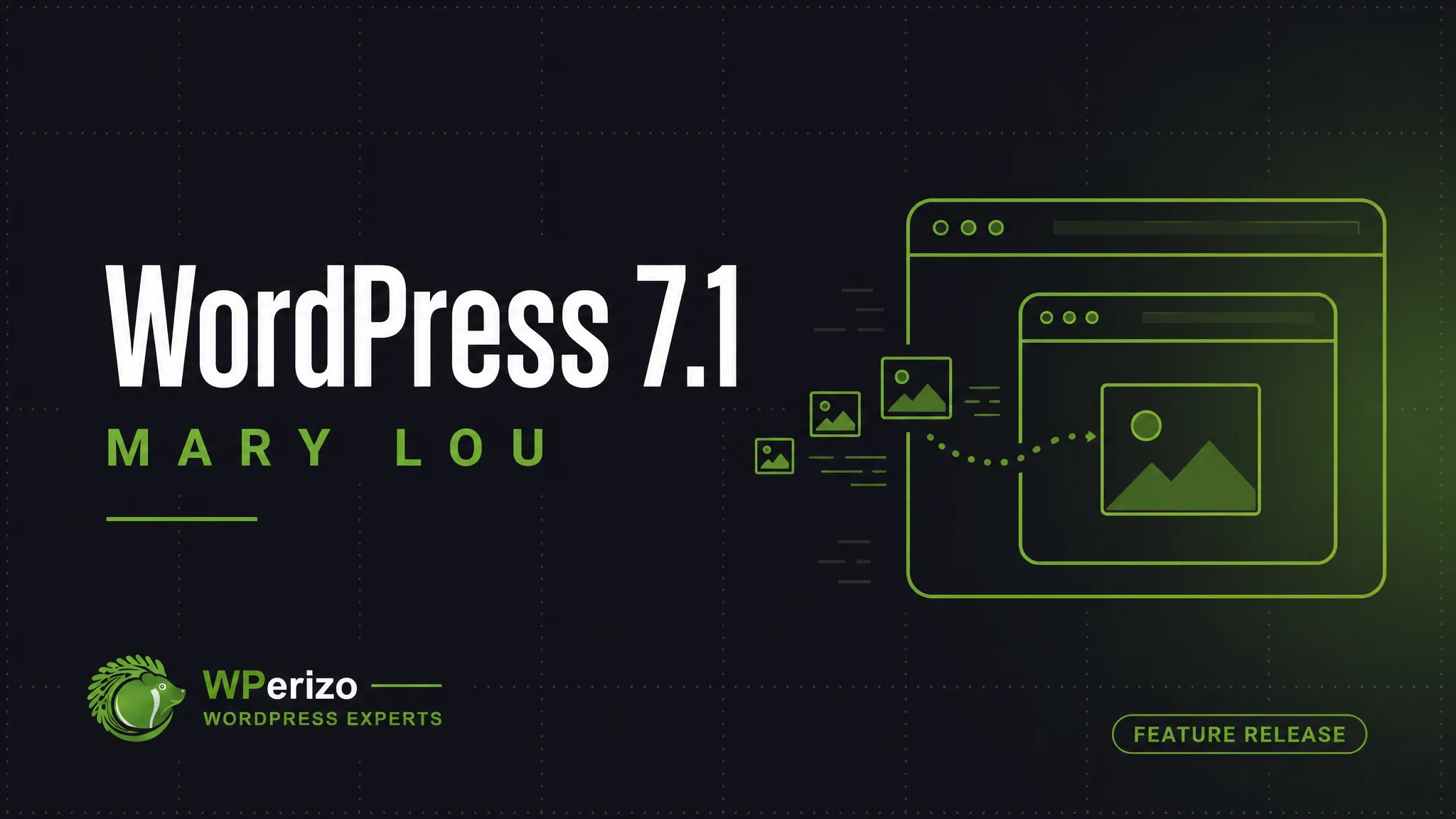
WordPress 7.1 landed on August 19, 2026. Anne McCarthy led the release, more than 800 contributors shipped over 1,500 changes, and the feature list reads like three releases stacked on top of each other: responsive styling without CSS, a new media editor, inline notes with mentions, two new blocks, a public icon API.
You can read that list anywhere. What you probably want to know is different: does this break my site, and should I update today or next week?
Short answer: 7.1 is a feature release, not a security release. There is no reason to rush. But there are two changes in it with real potential to break things, and one that will quietly make your site better without you doing anything.
The two changes that can break your site
1. The post editor is now fully iframed — for every theme
This is the big one, and almost nobody is talking about it.
Until now, the post editor rendered inside the WordPress admin page. Admin CSS and the editor canvas shared the same document, which meant a plugin or theme could reach into the editor with a stylesheet or a bit of jQuery and change how things looked or behaved. Plenty of them do exactly that. The Site Editor was already iframed; the post editor was the holdout.
In 7.1 it isn’t. The editing canvas runs in its own document, separated from the admin interface.
The upside is real: admin styles can no longer leak into your content, and viewport units and media queries now measure the canvas instead of the browser window, so responsive layouts behave the way you’d expect while you build them.
The downside is that any code which assumed a shared document may now be pointing at nothing. What to watch for:
Custom blocks with styles enqueued into the admin rather than the editor
Older page builders and editor add-ons
Anything that manipulated the editor DOM with jQuery
Custom meta boxes and admin-side scripts
Editor styles registered the old way instead of through
add_editor_style()ortheme.json
Symptoms are usually cosmetic rather than fatal — an editor that looks wrong, a block that loses its styling, a control that stops responding. Not a white screen. But a client who can’t edit their own page is an emergency regardless of how it’s classified.
2. Responsive breakpoints can now be redefined by your theme
Block themes can set their own mobile and tablet breakpoints in theme.json, overriding the WordPress defaults for both responsive styles and block visibility.
That is genuinely useful. It also means the values a theme update introduces later can shift where your layout switches from one arrangement to another — on content you built assuming the old numbers. If your theme adopts custom breakpoints in a future release, check your key templates afterward.
The change that helps you without any work
Image compression, resizing, and thumbnail generation now happen in the browser, using a WebAssembly build of libvips, before the file ever reaches your server.
If you have ever watched an upload fail halfway through a batch of product photos, this is the fix. Image processing was one of the most reliable ways to hit a PHP memory limit or an execution timeout, because the work happened server-side, per file, per generated size. Moving it client-side removes that class of failure almost entirely — and produces smaller files while it’s at it.
For a WooCommerce store with a large catalog, this is the single most valuable thing in the release.
Two related additions:
AVIF, HEIC, and HDR gain maps are natively supported. HEIC matters more than it sounds: it’s the default on iPhones, and until now clients photographing their own products had to convert before uploading. That step is gone.
GIF-to-video conversion is available as an opt-in. Animated GIFs are enormous. Video versions of the same animation typically are not.
The rest, briefly
A new media editor. The Crop button still gets you there, but it now opens a dedicated modal with freeform and aspect-ratio cropping, horizontal and vertical flipping, precise and snap rotation, and metadata editing in one place. Clients will find this on their own.
Responsive styles in the editor. Style a block differently per screen size from Global Styles or block settings, and preview at different viewport widths as you work. Real reduction in custom CSS.
The admin bar stays with you across every editor, so you always know where you are.
Notes got serious. Rich text formatting, @mentions with notifications, notes attached to a specific run of text rather than a whole block, multiple conversation threads on one block, and collapsible long notes. If you review content with a team, this is the release where the feature becomes usable.
Two new blocks. Playlist, for multiple audio tracks with an optional waveform. Tabs, for organising related content into panels instead of one long scroll.
Interactive styles on buttons. Hover, focus, and active states set directly in the editor — one button or all of them.
Speculative loading is now configurable through environment variables or constants, so hosts and site owners can control prefetching without a plugin.
For developers
The SVG Icon API is public. Register your own collections and icons with wp_register_icon_collection(), wp_register_icon(), and wp_get_icon(), and they’re available throughout the editor next to the built-in library. For anyone maintaining a client-specific block library, this replaces a pile of custom plumbing.
The Abilities API — introduced in 6.9 — gains a filterable execution lifecycle, custom validation, and shared discovery. This is the layer AI tooling and automation build on top of.
A new Design System brings semantic design tokens and a ThemeProvider React component for theming admin interfaces, covering colour, roundness, and cursor styles. Custom admin screens can now look like WordPress without guessing at hex values.
Theme authors get pseudo-state styling for hover, focus, focus-visible, and active in theme.json, plus new filters for the DataViews and DataForm screens behind Pages, Templates, Parts, and Patterns.
Accessibility work continues with wp_get_tooltip() and wp_get_toggletip() for accessible tooltips in the admin, including meta boxes and the login screen, along with clearer labelling and more predictable screen reader navigation in post list tables.
How to update
Feature releases deserve more caution than security releases, because there is no clock running. Nothing about 7.1 is urgent. Everything about it is worth doing correctly.
1. Back up first — files and database. Off-site, not on the same server. A backup you can’t reach when the server is unreachable is not a backup.
2. Update on staging, not production. For a feature release with an editor architecture change in it, this stops being optional. If you don’t have a staging environment, that is the actual problem to solve — not 7.1.
3. Check PHP first. Confirm your version is current and supported before you add anything new on top.
4. Update plugins and theme before core, then re-check. Developers ship 7.1 compatibility fixes in the days around a release. Going in with current versions eliminates a category of problem before you meet it.
5. Open the post editor and actually use it. This is the step people skip. Edit a real page. Insert your custom blocks. Open your meta boxes. If the iframing change affects your setup, this is where you find out — quietly, on staging, instead of loudly, from a client.
6. Test the media pipeline. Upload a large image, upload a HEIC file, crop something. Browser-side processing is new; verify it works on your hosting and with your image-related plugins.
7. Check your key templates at mobile and tablet widths. Responsive styling and breakpoint changes make this worth two minutes.
8. Then go live — and clear every cache. Page cache, object cache, CDN. A stale cached page will convince you an update failed when it succeeded.
If something does break
The iframing change is unlikely to produce a fatal error, but if you do end up on a blank page after updating, the diagnostic order is the same as always: get the error message back before you touch anything else. We wrote that process up in detail — The WordPress White Screen of Death: A Diagnostic Order.
For a broken editor rather than a broken site, the sequence is shorter: deactivate editor-related plugins one at a time, switch to a default theme to isolate whether it’s the theme, and check the browser console. With the canvas iframed, console errors are considerably more informative than they used to be.
The short version
WordPress 7.1 is a good release. Browser-side image processing alone justifies it, particularly for stores. The responsive styling tools will remove real amounts of custom CSS from real projects.
But it also changes how the post editor is rendered, for every theme, and that will surface incompatibilities in older plugins and builders. Update deliberately: staging first, plugins current, then test the editor with your own content before it reaches production.
If you’d rather not manage that yourself — our Maintenance Package stages and tests every update on a copy of your site before it touches production, with off-site backups and security monitoring included. And if a site is already broken, get in touch: phone, email, or live chat, whichever is fastest.
WPerizo.com – WordPress & WooCommerce. Nothing else. 🦔